Sandbox help
How to explore KingstonRx
Task-based walkthroughs for pharmacy volunteers and evaluators. Screenshots are captured from the same Playwright flows used in smoke testing so they stay aligned with the product.
Sandbox only. Use synthetic patients, prescribers, and inventory. Do not enter real patient names, IDs, prescription details, or medical histories. Keep sandbox materials confidential per the NDA.
Getting started
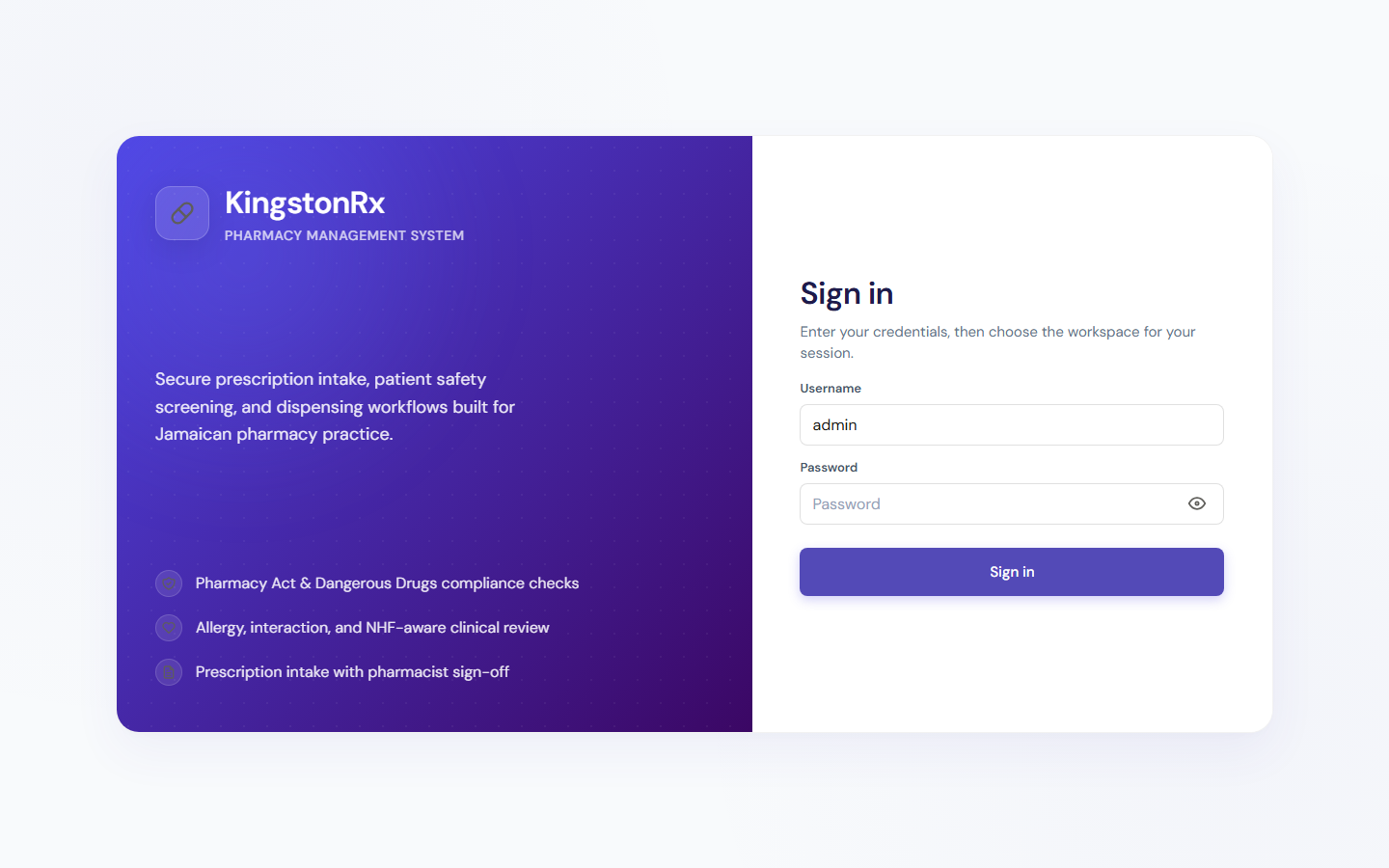
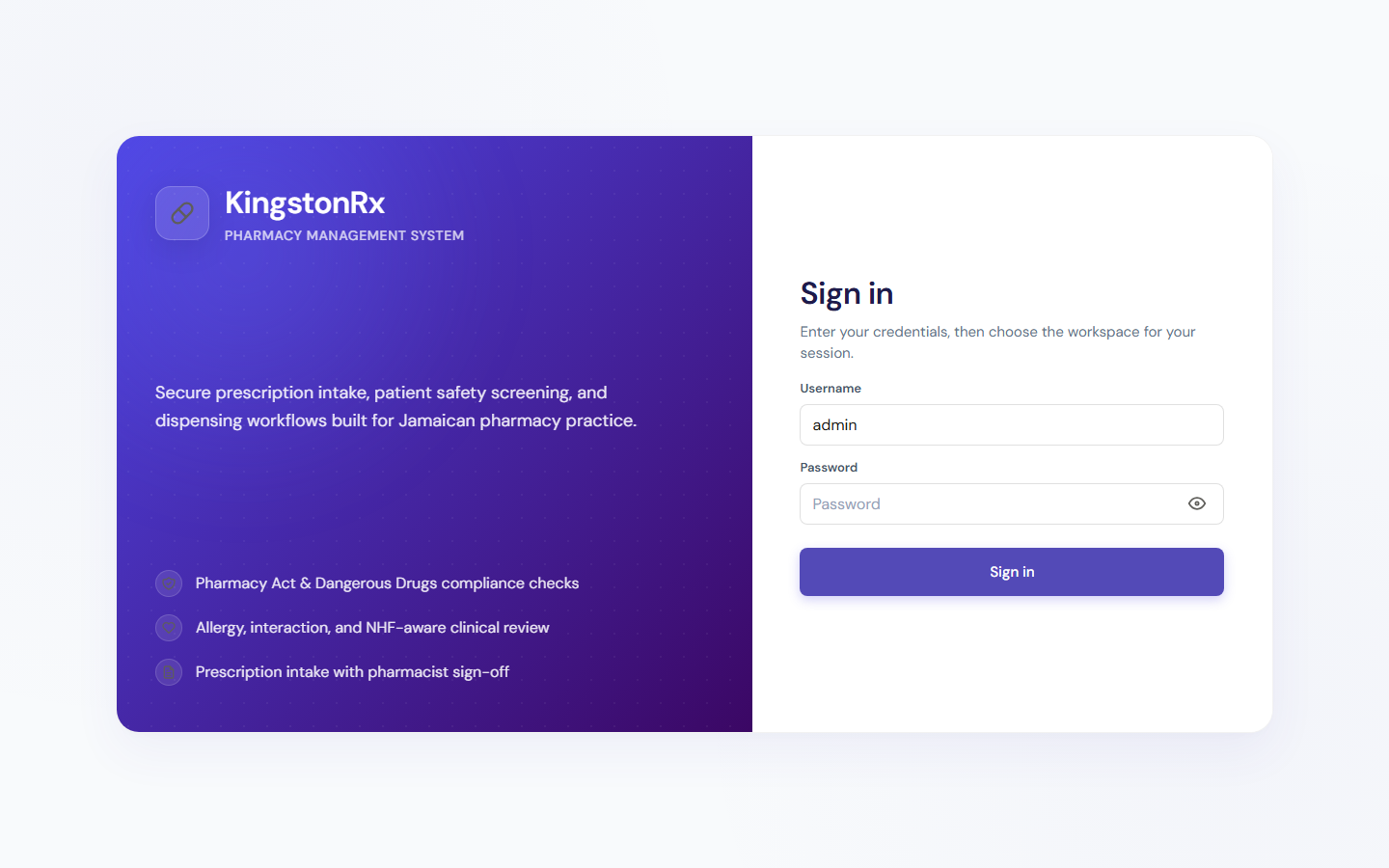
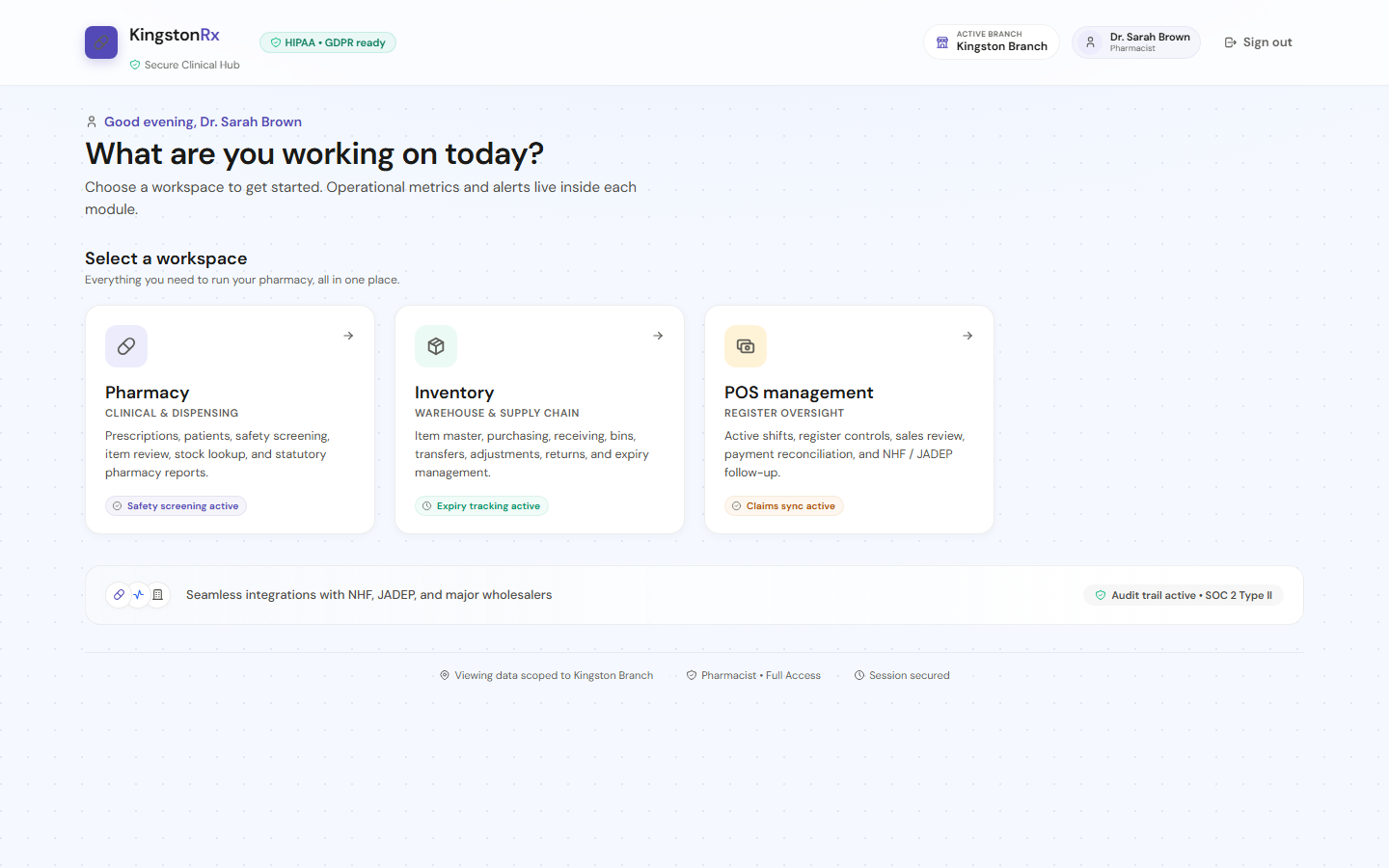
Request sandbox access, sign in, and choose a workspace for your session.
- Open the sandbox landing page and submit a request if you do not yet have credentials.
- After approval, use the activation email to set your password, then sign in at /login with the email address or username you registered.
- On the home screen, pick Pharmacy, Inventory, Point of sale, or Administration.
- Use Switch workspace in the sidebar footer to return home and change modules.
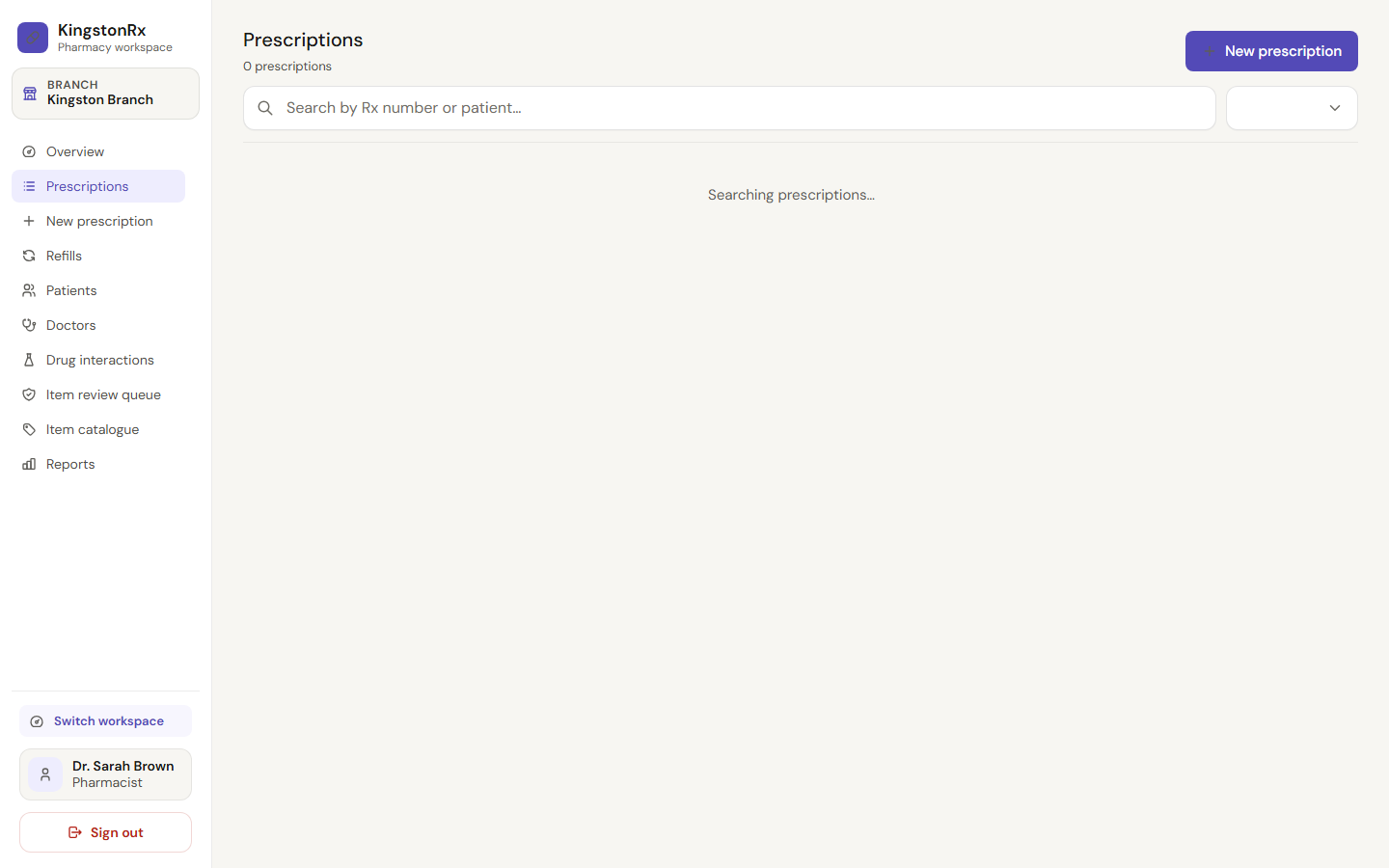
Prescription queue
Review seeded prescriptions and their clinical status before intake or dispensing.
- Open Pharmacy → Prescriptions to see the branch queue.
- Use search and filters to find a prescription by patient, prescriber, or status.
- Open a row to review screening results, notes, and workflow history.
- Statuses move from intake through screening, pharmacist review, counselling, and POS.
Prescription intake
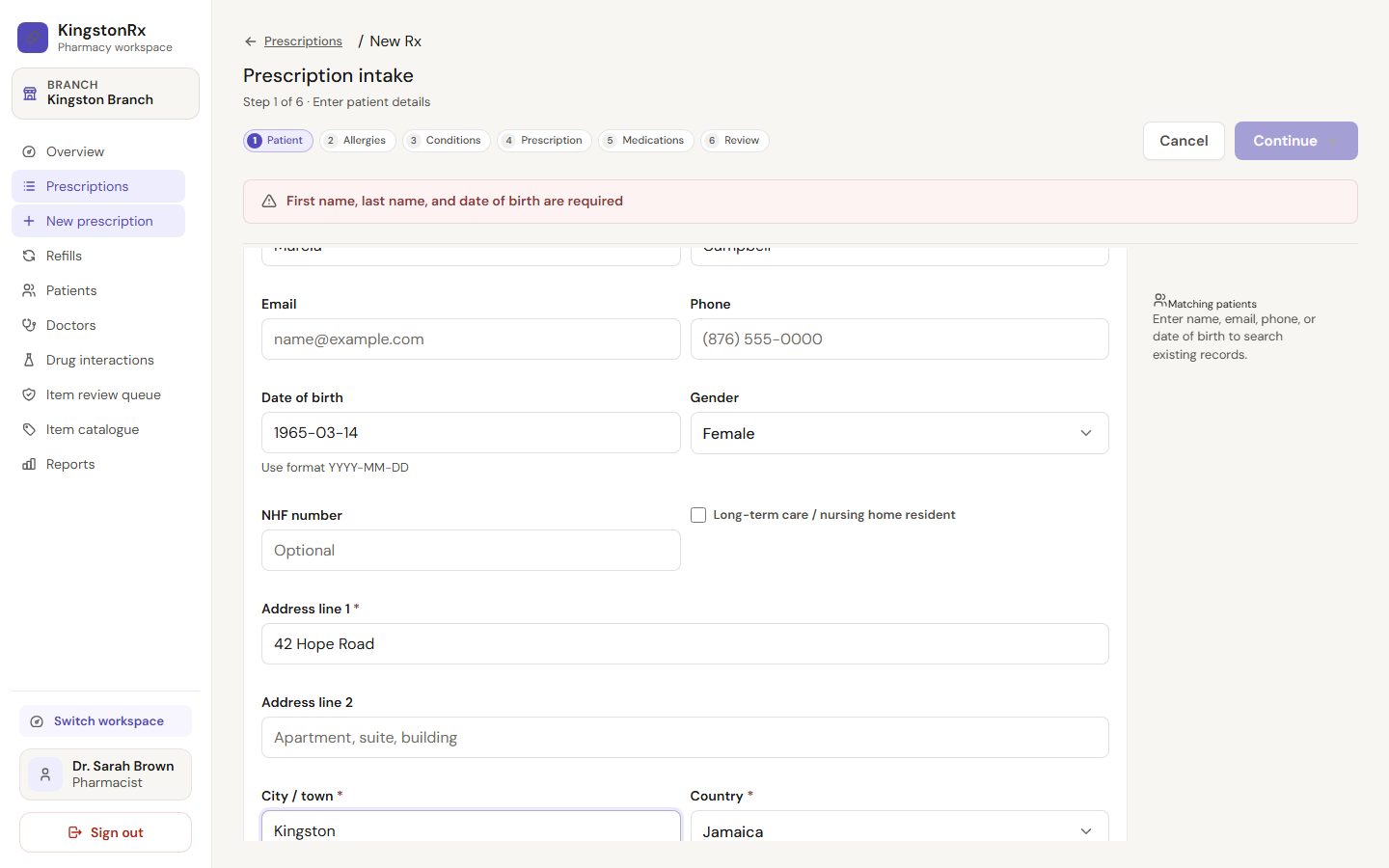
Capture patient details and walk through allergy and safety review steps.
- Open Pharmacy → New prescription to start intake.
- Enter synthetic patient demographics only — never real patient identifiers.
- Confirm parish/state and consent before continuing.
- Complete allergy acknowledgement, prescriber selection, medications, and save as draft or submit.
Inventory receiving
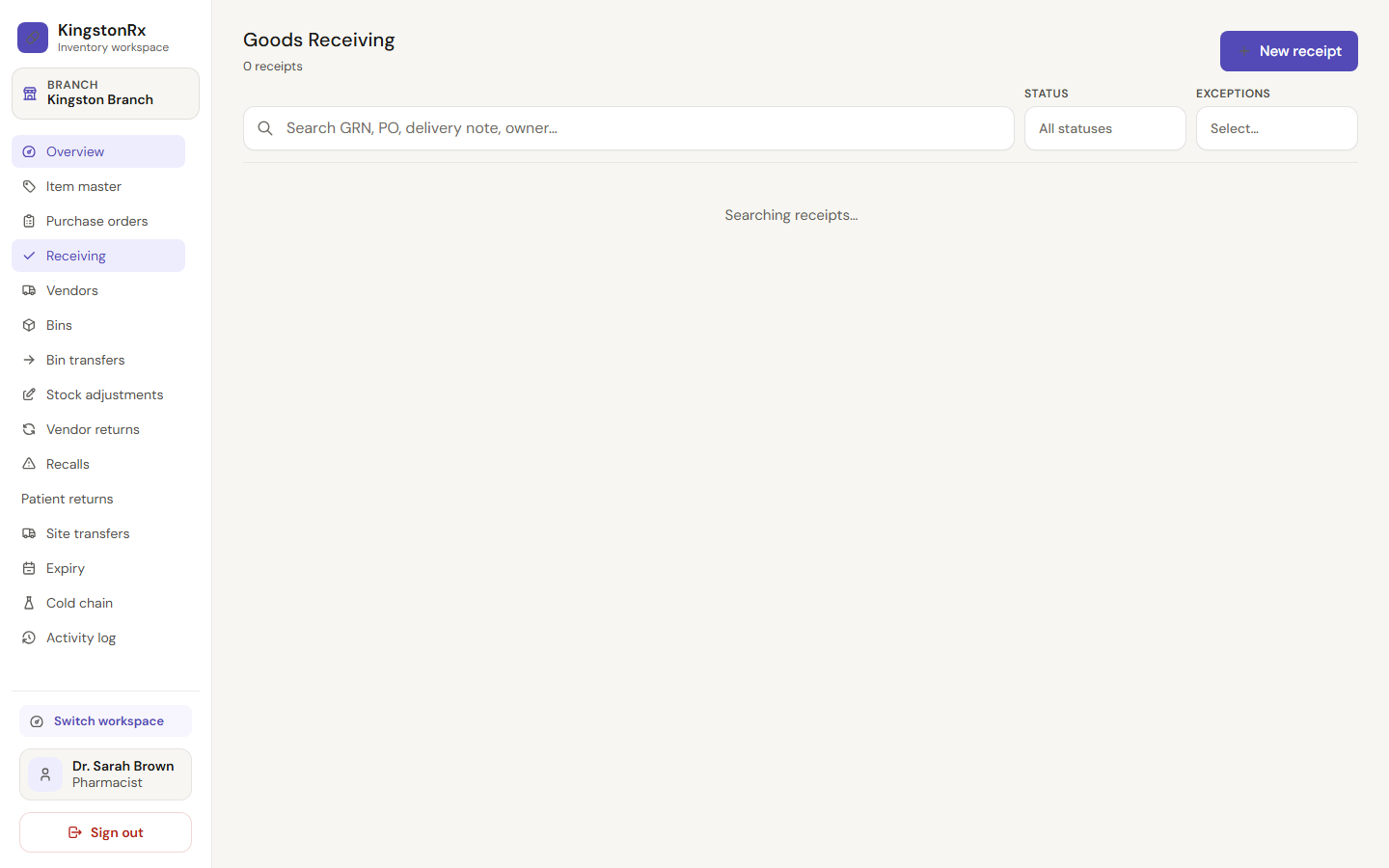
Receive purchase orders and put stock away before dispensing dependent workflows.
- Complete Track I receiving in the sandbox before clinical dispensing tests that need on-hand stock.
- Open Inventory → Receiving to view expected deliveries and open receipts.
- Finish quantity, batch, and cost capture, then put items away to bins.
- Use Item master to confirm sellable status and regulatory class.
POS dispense
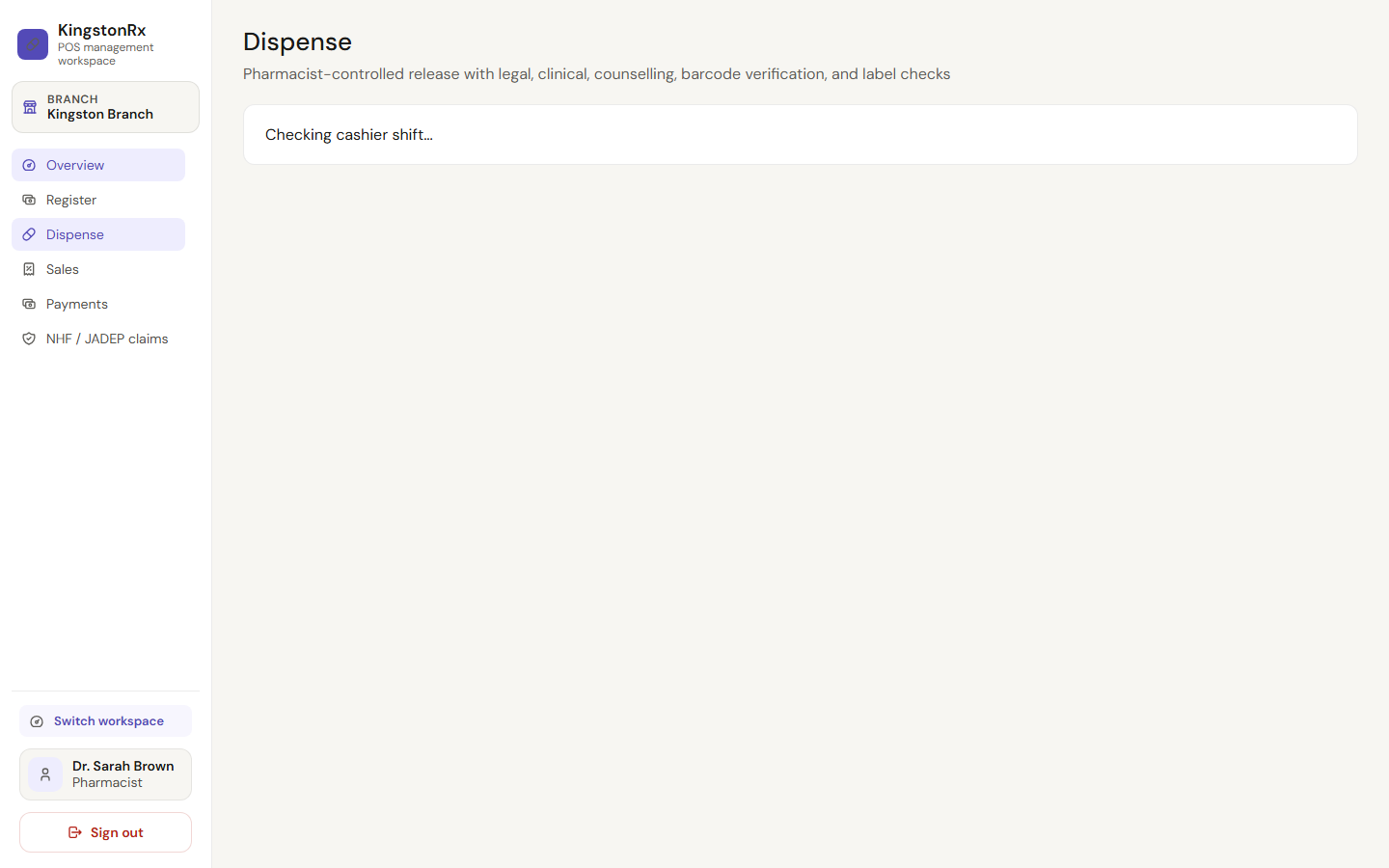
Release pharmacist-approved prescriptions and complete compliance checks at the counter.
- Open Point of sale → Dispense to view prescriptions ready for release.
- Blocked cards indicate pending pharmacist review or missing compliance checks.
- Scan batch barcodes when prompted and confirm counselling or DDA steps as required.
- Hand off to the register when payment is required for the scenario.
Administration
Internal operators manage users, branches, workstations, and audit review.
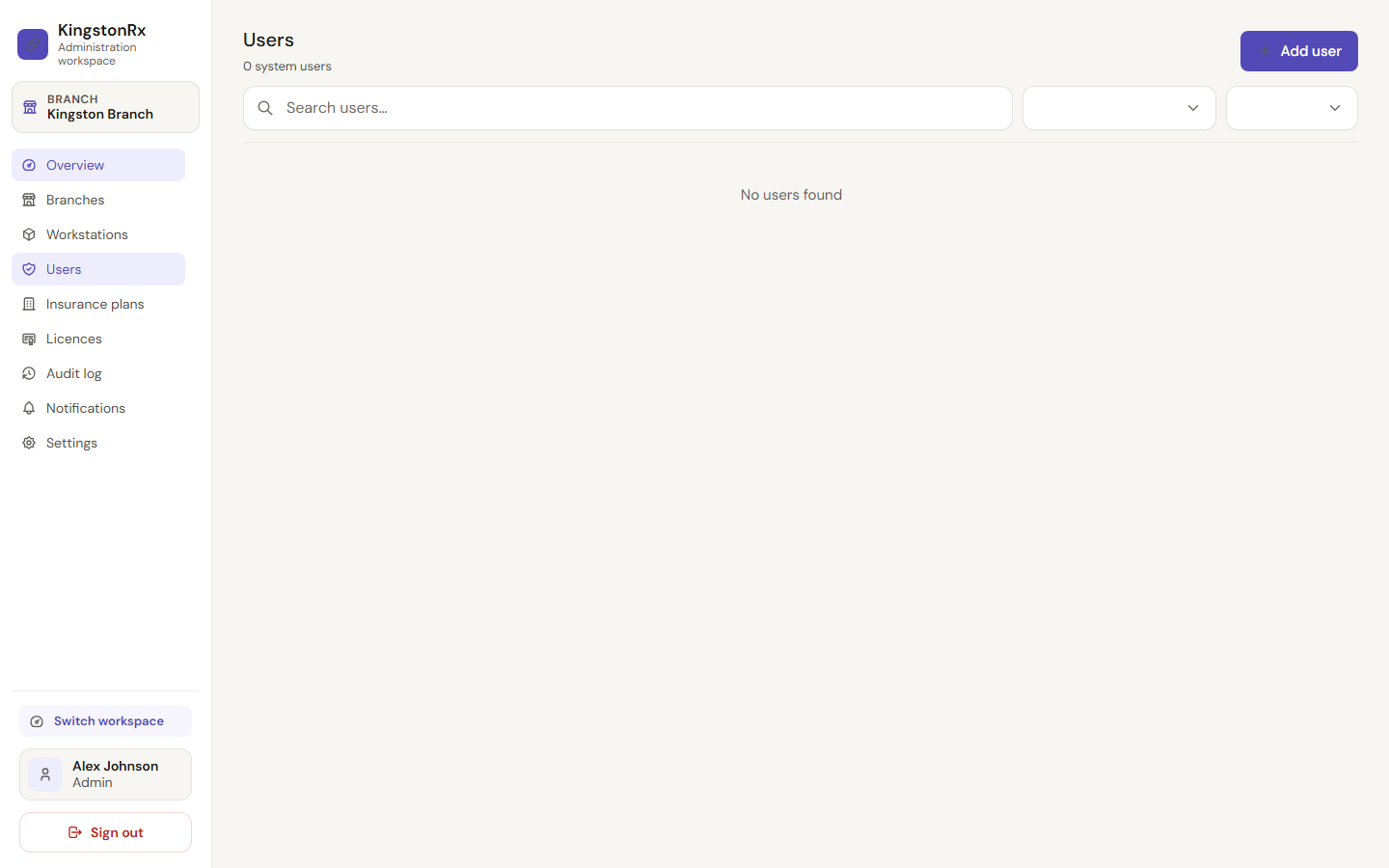
- Sign in with an administrator account for admin-only tasks.
- Open Administration → Users to review staff accounts and roles.
- Use Workstations to approve desktop shell devices for a branch.
- Audit log and notifications support operational review during UAT.